Author: 2fakey.site

  • How QR Codes Are Used in Two-Factor Authentication

    How QR Codes Are Used in Two-Factor Authentication

    How QR Codes Are Used in Two-Factor Authentication

    As online threats continue to grow, protecting digital accounts has become more important than ever. Passwords alone are no longer enough to stop hackers, especially when phishing attacks, data breaches, and malware are common. To strengthen account security, two-factor authentication (2FA) is widely used across websites, apps, and services. One of the most important and widely used elements in modern 2FA systems is the QR code.

    QR codes play a critical role in making two-factor authentication both secure and user-friendly. Many people scan a QR code when setting up 2FA but do not fully understand what it does or why it is necessary. In this article, we will explore in detail how QR codes are used in two-factor authentication, how they work behind the scenes, why they are secure, and why they are preferred over manual setup methods.

    Understanding the Role of QR Codes in 2FA

    A QR code in two-factor authentication is mainly used during the initial setup process. When a user enables 2FA on an account, the system needs a safe way to connect the user’s account with an authentication app such as Google Authenticator, Authy, or Microsoft Authenticator. The QR code acts as a secure bridge between the service and the authentication app.

    Instead of manually entering long secret keys, the QR code contains encoded information that allows the authenticator app to automatically configure itself. This makes the setup faster, reduces human error, and ensures that the authentication codes generated are accurate and secure.

    What Information Does a 2FA QR Code Contain?

    A common misunderstanding is that QR codes store passwords or personal data in plain text. In reality, a 2FA QR code usually contains:

    • A secret key (shared secret)

    • The account or service name

    • The issuer name (for identification in the app)

    • The type of authentication (usually TOTP-based)

    This information is encoded in a special format that authentication apps understand. Once scanned, the app stores the secret key securely and starts generating time-based one-time passwords (TOTP).

    How QR Codes Work in Two-Factor Authentication (Step-by-Step)

    When you enable 2FA using a QR code, the process usually follows these steps:

    First, you log in to your account and go to the security or 2FA settings. When you choose to enable app-based authentication, the system generates a unique secret key for your account. This secret key is then encoded into a QR code and displayed on the screen.

    Next, you open your authentication app on your phone and choose the option to add a new account. You scan the QR code using your phone’s camera. The app instantly reads the encoded data and saves the secret key.

    From that moment onward, the authentication app generates a new one-time code every 30 seconds. These codes are mathematically linked to the secret key and the current time, which means the server and the app always generate the same code at the same time. When you log in, you enter the code shown in your app, and access is granted only if it matches.

    Why QR Codes Are Preferred Over Manual Setup

    Before QR codes became common, users had to manually type long secret keys into their authentication apps. This process was slow, confusing, and prone to mistakes. A single wrong character could break the entire setup.

    QR codes solved these problems by offering:

    • Faster setup

    • Fewer errors

    • Better user experience

    • Improved security

    By scanning a QR code, users avoid typing sensitive information, which also reduces the risk of keylogging or shoulder surfing attacks.

    Security Benefits of Using QR Codes in 2FA

    QR codes improve security in several important ways. First, the secret key is shared only once during setup and is not transmitted repeatedly. Second, the QR code is usually displayed only temporarily and becomes invalid after setup is completed.

    Additionally, QR codes are generated uniquely for each user and each session. Even if someone else sees the QR code, they would need immediate access to scan it before it expires. This makes unauthorized interception very difficult.

    However, it is important to note that users should never share screenshots of their 2FA QR codes. Anyone who scans that code can generate valid authentication tokens for the account.

    QR Codes and TOTP-Based Authentication

    Most QR codes used in two-factor authentication are based on Time-Based One-Time Passwords (TOTP). TOTP is an algorithm that generates short-lived codes based on time and a shared secret.

    The QR code is simply a convenient way to deliver this shared secret securely to the authentication app. Once the secret is stored, the QR code itself is no longer needed. The app and the server independently generate matching codes using the same secret and time reference.

    This system works even without an internet connection on the user’s phone, which is another major advantage of app-based 2FA.

    Common Use Cases of QR Codes in 2FA

    QR codes are widely used across many platforms, including:

    Email services

    Social media platforms

    • Cloud storage services

    • Online banking systems

    • Business and enterprise applications

    In all these cases, QR codes simplify the setup process while maintaining strong security standards.

    Risks and Best Practices When Using QR Codes

    Although QR codes are secure when used correctly, users must follow best practices. Never take screenshots of QR codes or store them in cloud storage. Always complete the setup in a private environment. Once setup is complete, confirm that backup codes are saved safely in case the authentication device is lost.

    If you believe your QR code has been exposed, immediately disable and re-enable 2FA to generate a new secret key.

    Final Conclusion

    QR codes play a vital role in making two-factor authentication practical, secure, and easy to use. They allow users to set up app-based 2FA quickly while reducing errors and enhancing security. By securely transferring secret keys to authentication apps, QR codes help protect millions of accounts from unauthorized access every day.

    Understanding how QR codes work in two-factor authentication helps users appreciate their importance and use them responsibly. When combined with good security habits, QR-code-based 2FA is one of the most effective defenses against modern cyber threats.


  • How to Enable 2FA on Google Accounts

    How to Enable 2FA on Google Accounts

    How to Enable 2FA on Google/Gmail Accoun

    Google and Gmail accounts are among the most valuable digital identities a person owns today. From emails, contacts, and cloud storage to YouTube, Google Drive, photos, documents, and even third-party app logins—everything is connected to one single Google account. Because of this, Google accounts are a prime target for hackers. If someone gains access to your Gmail, they can reset passwords for many other services, steal personal data, and even lock you out of your own digital life.

    This is why enabling Two-Factor Authentication (2FA) on Google and Gmail accounts is no longer optional—it is essential. 2FA adds an extra security layer that protects your account even if your password is stolen. In this article, we will explain in detail how to enable 2FA on Google accounts and Gmail accounts, how it works, the different verification methods Google offers, and best practices to keep your account fully secure.

    Why Google and Gmail Accounts Need Extra Security

    Most people reuse passwords across multiple websites. When one site is breached, attackers often try the same email-password combination on Google accounts. Even a strong password can be compromised through phishing emails, fake login pages, or malware.

    Google accounts also store sensitive personal and professional information. Emails may contain bank details, business contracts, private conversations, and verification links. If a hacker accesses your Gmail, the damage can be long-lasting and difficult to reverse. 2FA significantly reduces this risk by ensuring that login access requires something more than just a password.

    What Is Google 2FA and How It Works

    Google’s 2FA system verifies your identity using two steps. First, you enter your password. Second, Google asks for an additional verification method to confirm that it is really you. This second step can be a prompt on your phone, a code from an authentication app, an SMS code, or a physical security key.

    Once enabled, even if someone knows your password, they cannot log in without the second factor. This makes unauthorized access extremely difficult.

    Step-by-Step Process to Enable 2FA on Google/Gmail

    To enable 2FA on your Google or Gmail account, you first need to sign in to your Google Account settings. Navigate to the Security section and find the option for 2-Step Verification. Google will ask you to confirm your password before continuing.

    Once inside the 2-Step Verification setup, Google guides you through the process step by step. The first method usually suggested is Google Prompt, which sends a notification to your phone asking you to confirm the login attempt. After enabling this, you can add additional verification methods for backup and flexibility.

    The setup process is user-friendly and takes only a few minutes, but it provides long-term protection.

    Google 2FA Methods Explained in Detail

    Google offers multiple 2FA methods so users can choose what works best for them. Each method has its own advantages and security level.

    Google Prompt

    Google Prompt is one of the most secure and convenient options. When you try to log in, Google sends a notification to your phone asking you to confirm the attempt. You simply tap “Yes” or “No.” This method is resistant to phishing because it does not rely on typing codes.

    Authenticator App

    Using an authenticator app such as Google Authenticator generates time-based one-time passwords (TOTP). These codes change every 30 seconds and work even without an internet connection. This method is highly secure and widely recommended.

    SMS or Voice Call Codes

    Google can send verification codes via SMS or voice call. While this method is better than no 2FA, it is less secure than app-based authentication because of SIM swap attacks. It is best used only as a backup option.

    Security Keys

    A physical security key is one of the strongest forms of 2FA. It must be physically connected or tapped to approve a login. This method is commonly used by professionals, journalists, and high-risk users.

    Best 2FA Method for Google Accounts

    For most users, combining Google Prompt + Authenticator App provides excellent security and convenience. SMS codes should only be used as a backup. Users who want maximum protection should consider adding a physical security key.

    Google allows multiple 2FA methods at once, which ensures you are not locked out if one method fails.

    Backup Codes and Why They Matter

    When you enable 2FA, Google provides backup codes. These are one-time-use codes that can help you access your account if you lose your phone or cannot use your primary 2FA method.

    It is extremely important to store these backup codes in a safe place, such as a password manager or offline storage. Without backup options, recovering a locked Google account can be difficult and time-consuming.

    Common Mistakes While Enabling Google 2FA

    Many users enable 2FA but make mistakes that weaken security. One common mistake is relying only on SMS codes. Another is failing to save backup codes. Some users also forget to update their recovery phone number or email.

    Regularly reviewing your security settings ensures that your 2FA setup remains effective and up to date.

    How 2FA Protects Gmail from Phishing Attacks

    Phishing emails often trick users into entering their passwords on fake login pages. With 2FA enabled, even if attackers capture your password, they still cannot access your account without the second factor. Google also uses risk-based detection to block suspicious login attempts.

    This combination of 2FA and Google’s advanced security systems makes Gmail one of the safest email platforms when configured properly.

    Final Conclusion

    Enabling 2FA on your Google and Gmail accounts is one of the smartest steps you can take to protect your digital identity. With multiple verification methods, strong protection against phishing, and easy setup, Google’s 2FA system offers both security and convenience.

    In a world where cyber threats are constantly evolving, relying only on passwords is a serious risk. By enabling 2FA today, you significantly reduce the chances of unauthorized access and protect your personal and professional data for the future.

  • Difference Between 2FA and MFA (Multi-Factor Authentication)

    Difference Between 2FA and MFA (Multi-Factor Authentication)

    Difference Between 2FA and MFA (Multi-Factor Authentication)

    Why Online Security Needs More Than Passwords
    Passwords used to be enough. But let’s be honest—most people reuse them, write them down, or pick something too easy, like “123456.” Hackers love this. That’s why adding extra layers of security, like 2FA and MFA, has become essential.

    Quick Overview of Authentication Methods

    It’s like showing an ID at the airport, but online. There are different ways to do it, and that’s where 2FA and MFA come in.

    What is Two-Factor Authentication (2FA)?

    The Definition of 2FA

    2FA means using two different types of verification to access an account. For example, you enter your password, and then you confirm with a code sent to your phone.

    Common Examples of 2FA in Everyday Use

    • Logging into Gmail with a password and a text code.
    • Using Facebook with an app-generated code.

    What is Multi-Factor Authentication (MFA)?

    The Definition of MFA

    MFA is like 2FA but broader. It means using two or more factors from different categories—something you know, something you have, and something you are.

    How MFA Expands Beyond 2FA

    While 2FA always uses exactly two methods, MFA can use three or more. For example, you could log in with a password, a fingerprint scan, and a hardware key.

    The Core Difference Between 2FA and MFA

    Number of Security Layers

    • 2FA = exactly two checks.
    • MFA = two or more checks.

    Practical Usage Differences

    2FA is simpler and more common for everyday users. MFA is often required in high-security industries like finance, healthcare, and government.

    Factors Used in 2FA and MFA

    Something You Know (Passwords, PINs)

    This is the oldest method—like remembering a secret code.

    Something You Have (Phones, Tokens)

    A physical device or app you own, such as your phone or a hardware key.

    Something You Are (Biometrics)

    Your fingerprint, face scan, or even voice recognition.

    The Evolution of 2FA and MFA

    Early Security Measures with Passwords

    In the early days, a single password was enough. But breaches forced a change.

    Rise of 2FA

    2FA grew popular in the 2000s.

    Real-World Examples of 2FA

    SMS-Based 2FA

    A text message with a code sent to your phone. Convenient but not the most secure.

    Authentication Apps like Google Authenticator

    Apps that generate time-based codes. More secure because they don’t rely on mobile networks.

    Real-World Examples of MFA

    Banking and Financial Services

    Banks often combine a password, SMS code, and sometimes biometrics.

    Enterprise-Level MFA in Corporations

    Big companies use MFA to protect sensitive files and employee logins.

    Strengths of 2FA

    Simple and Easy to Use

    Most people can set up 2FA in minutes.

    Better Than Passwords Alone

    Even basic 2FA makes it much harder for hackers to break in.

    Weaknesses of 2FA

    Vulnerability to SIM Swaps and Phishing

    Hackers can trick phone carriers or fool users into sharing codes.

    Limited Security in High-Risk Environments

    For top-secret data, 2FA just isn’t enough.

    Strengths of MFA

    Higher Security with Multiple Layers

    MFA makes it nearly impossible for hackers to bypass all factors.

    More Resistance to Hacking Attempts

    Even if a hacker gets your password, they’d also need your device and biometric info.

    Weaknesses of MFA

    Complexity in Setup and Maintenance

    MFA can confuse users if not designed well.

    Cost and User Friction

    Enterprises may need to spend on special hardware, and users may find it inconvenient.

    When Should You Use 2FA?

    Everyday Accounts and Social Media

    For Facebook, Instagram, or email accounts, 2FA is usually enough.

    Personal Email and Shopping Sites

    It adds a safety net without making logins too complicated.

    When Should You Use MFA?

    Sensitive Business Data

    If you’re managing company or customer data, MFA is a must.

    High-Value Financial Transactions

    Banks, trading platforms, and crypto wallets benefit most from MFA.

    Future of Authentication: Passwordless and Beyond

    Rise of Biometrics and Passkeys

    Tech giants like Apple and Microsoft are pushing passkeys and biometrics for easier logins.

    Role of AI in Adaptive Authentication

    AI can adjust authentication levels based on your behavior—like logging in from a new location.

    Conclusion

    Key Differences Between 2FA and MFA

    2FA uses two security checks, while MFA can use two or more. Both protect better than passwords alone, but MFA provides the strongest security.

    FAQs

    1. Is MFA always better than 2FA?
      Yes, MFA is stronger, but sometimes 2FA is enough for personal use.
    2. Can I use both 2FA and MFA together?
      Technically, MFA already includes 2FA. If you’re using MFA, you’re covered.
    3. Do banks use 2FA or MFA?
      Most banks use MFA—like a password, an SMS code, and sometimes biometrics.
    4. What’s the easiest MFA method to set up?
      Using an authentication app with biometrics is simple and effective.
    5. Is passwordless login the same as MFA?
      Not exactly. Passwordless often relies on biometrics or security keys but can be part of an MFA system.
     

  • The History of Two-Factor Authentication – From SMS to Apps

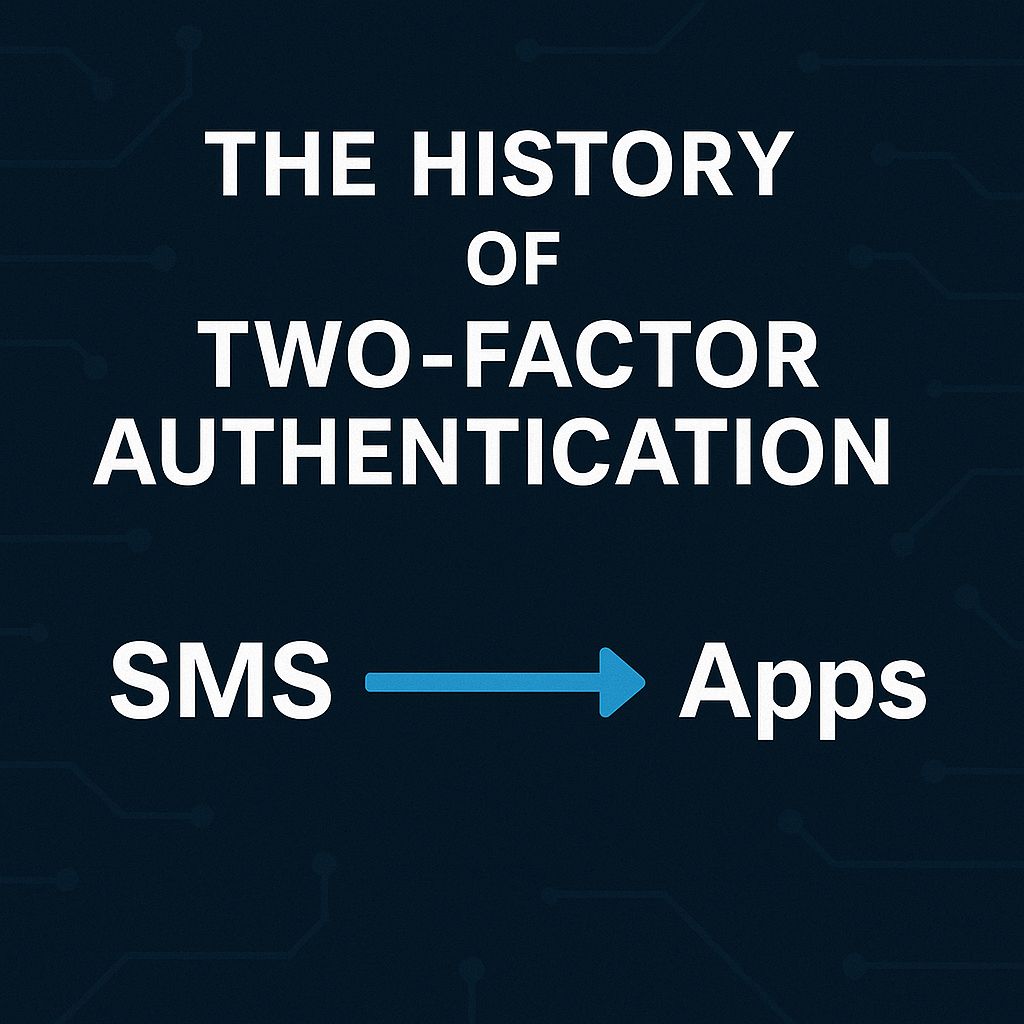
    The History of Two-Factor Authentication – From SMS to Apps

    The History of Two-Factor Authentication – From SMS to Apps

    Why Two-Factor Authentication Matters

    Imagine leaving your house door locked with just a tiny padlock. Anyone with the right tool could break in. That’s what online security looked like with just passwords. Two-Factor Authentication (2FA) adds another lock on the door—making intruders think twice before trying.

    A Quick Look at Authentication Basics

    Authentication simply means verifying that you are who you say you are. Traditionally, this meant entering a password. But as cybercrime exploded, passwords alone became too easy to steal.

    The Early Days of Online Security

    Passwords as the First Line of Defense

    When the internet took off in the 1990s, passwords were the only gatekeepers. They worked well at first, but hackers quickly found ways to crack weak or reused passwords.

    The Growing Problem of Password Breaches

    As users signed up for multiple platforms, password reuse became common. A single data breach could compromise thousands of accounts.

    The Birth of Two-Factor Authentication (2FA)

    What Sparked the Need for 2FA?

    Banks and financial institutions realized they needed stronger methods to protect sensitive customer data. Enter 2FA—an extra step that asked users to provide something beyond just a password.

    Early Implementations in Banking and Enterprises

    Enterprises used security tokens and codes delivered via pagers or specialized devices. Though clunky, they were more secure than just passwords.

    SMS-Based Two-Factor Authentication

    How SMS 2FA Worked

    Users would log in with a password, then receive a one-time code via text message. Entering the code confirmed their identity.

    Why It Became Popular in the 2000s

    SMS 2FA became popular because everyone had a phone, and no special apps or devices were required. Tech giants and banks quickly adopted it.

    Major Weaknesses of SMS-Based 2FA

    Despite convenience, SMS codes were vulnerable. SIM swapping attacks, phishing scams, and network interception exposed users to risks. By the mid-2010s, experts began calling for stronger alternatives.

    Transition from SMS to Apps

    The Rise of Authentication Apps

    Apps like Google Authenticator, Authy, and Microsoft Authenticator revolutionized 2FA. Instead of receiving codes via SMS, apps generated them offline.

    The Launch of Google Authenticator

    Launched in 2010, Google Authenticator was a game-changer. It brought 2FA to millions, reducing reliance on SMS.

    How App-Based 2FA Fixed SMS Problems

    App-generated codes weren’t tied to vulnerable phone networks. Even without internet or mobile service, apps kept working—making them more secure and reliable.

    Hardware Tokens and Security Keys

    Early Use of Hardware Tokens in Enterprises

    Before apps, hardware tokens were standard. These small devices displayed time-based codes, often used by large corporations.

    YubiKey and the Push for Physical Keys

    The YubiKey became popular as a simple, plug-and-play hardware solution. Companies like Google and Facebook encouraged employees to adopt them.

    Push Notifications in Authentication

    Why Push-Based 2FA Gained Traction

    Instead of typing codes, users could simply tap “approve” on their phone. This reduced friction and improved security.

    User Experience Benefits

    Push authentication made logins faster and more user-friendly, encouraging wider adoption.

    Biometric Authentication vs 2FA

    Fingerprint and Facial Recognition

    Biometrics like Apple’s Face ID and fingerprint scanners brought a new level of convenience.

    Can Biometrics Replace 2FA?

    Biometrics are powerful but not flawless. Experts recommend combining biometrics with 2FA for maximum protection.

    Regulatory Influence on 2FA Adoption

    Government Mandates on Online Security

    Governments worldwide began requiring stronger authentication for sensitive data. For example, Europe’s PSD2 regulation made 2FA mandatory for online payments.

    Financial Industry and Compliance

    Banks globally adopted 2FA as a compliance measure, ensuring customer safety and regulatory approval.

    Security Flaws in 2FA Systems

    SIM Swapping Attacks

    Hackers trick carriers into transferring your number to a new SIM, letting them intercept SMS codes.

    Phishing Attempts on 2FA

    Even with 2FA, clever phishing attacks can trick users into giving away codes.

    2FA in Big Tech Companies

    Google and Mandatory 2FA Rollout

    In 2021, Google began automatically enrolling millions of users in 2FA, pushing the industry standard forward.

    Meta, Apple, and Microsoft Adoptions

    Other tech giants followed, integrating 2FA into their platforms to protect billions of accounts.

    How 2FA Improved User Trust

    Building Confidence in Online Transactions

    Users began feeling safer shopping and banking online, knowing accounts had extra protection.

    E-Commerce and Social Media Protection

    From Amazon to Instagram, platforms embraced 2FA to safeguard user data and reduce fraud.

    The Global Adoption of Two-Factor Authentication

    2FA in the United States and Europe

    North America and Europe led the way in 2FA adoption, especially in finance and tech industries.

    Growing Importance in Developing Countries

    As internet use expands in Asia, Africa, and Latin America, 2FA adoption is growing rapidly to combat fraud.

    The Future Beyond Apps

    Passwordless Authentication

    Tech giants are pushing for passwordless logins, using biometrics, passkeys, and hardware devices.

    AI and Adaptive Authentication

    Artificial intelligence may soon personalize authentication, adapting based on user behavior for maximum security.

    Final Thoughts on the Evolution of 2FA

    Why Security is a Never-Ending Journey

    The story of 2FA shows one truth: hackers adapt, so security must evolve too.

    Key Takeaways from the Evolution

    From SMS to apps, and now toward biometrics and AI, 2FA has been a cornerstone of modern cybersecurity.

    FAQs

    1. What is the difference between 2FA and MFA?
      2FA uses two verification methods, while MFA (multi-factor authentication) may use two or more.
    2. Is SMS-based 2FA still safe to use?
      It’s better than nothing, but app-based or hardware keys are more secure.
    3. Do all websites support 2FA?
      Not yet, but most major platforms like Google, Facebook, and banks do.
    4. What comes after 2FA in online security?
      Passwordless authentication powered by biometrics and AI is the next big step.


  • Why Every Internet User Should Enable 2FA Today

    Why Every Internet User Should Enable 2FA Today

    What is Two-Factor Authentication (2FA)?

    Two-Factor Authentication, also known as 2FA, is an extra security step that makes logging in safer. Instead of just entering a password, you also need a second form of proof—like a text code, an app-generated code, or even your fingerprint.

    Think of it like locking your house with both a key and a security alarm. Even if someone steals your key (password), they can’t get inside without disabling the alarm (second factor).

    Why Passwords Alone Are No Longer Safe

    Passwords used to be enough, but not anymore. People still use easy-to-guess passwords like “123456” or “password.” Even worse, hackers steal millions of passwords every year through breaches.

    If your password leaks in a data breach, your accounts are instantly at risk. And since many people reuse the same password across multiple sites, one leak could open the doors to your entire digital life.

    The Rising Threat of Cybercrime

    Cybercriminals are getting smarter. Hackers buy stolen credentials on the dark web. And account takeovers are becoming more common, especially on social media.

    According to IBM’s 2024 Data Breach Report, the average data breach cost is now $4.45 million. That’s not just numbers—it’s proof that the digital world is dangerous without stronger protection.

    How Two-Factor Authentication Works

    Here’s the process in simple terms:

    1. Enter your username and password.
    2. Get a verification code on your phone, email, or app.
    3. Enter that code to confirm it’s really you.

    Think of it like using an ATM—you need your card (something you have) plus your PIN (something you know). Without both, the machine won’t give you money. 2FA works in the exact same way.

    Different Types of 2FA

    There are three main categories:

    • Something You Know: Password, PIN, or security question.
    • Something You Have: Smartphone, hardware token, or key fob.
    • Something You Are: Biometrics like fingerprints, face recognition, or voice ID.

    Most platforms combine at least two of these for extra safety.

    Popular 2FA Methods

    Let’s break down the most common ones:

    • SMS Verification: You get a code via text message. Easy but not the most secure.
    • Email-Based Codes: A code is sent to your email. Convenient but risky if your email gets hacked.
    • Authentication Apps: Apps like Google Authenticator generate codes that refresh every 30 seconds. Very secure.
    • Hardware Tokens: Devices like YubiKey that plug into your laptop or phone. Best for maximum security.

    Top 2FA Apps You Can Use

    Here are some reliable apps trusted by millions:

    • Google Authenticator – Free and widely supported.
    • Microsoft Authenticator – Great for both Microsoft and third-party accounts.
    • Authy – Offers backup and sync across devices.
    • Duo Mobile – Popular in business and enterprise security.

    Benefits of Enabling 2FA

    Why bother adding another step? Because:

    • It makes hacking your account 99% harder.
    • It protects your online money, data, and identity.
    • It gives you peace of mind, knowing one leaked password won’t ruin your life.

    Sure, it takes a few extra seconds, but wouldn’t you rather spend a few seconds now than hours fixing a hacked account?

    Common Myths About 2FA

    Some people avoid 2FA because of myths. Let’s clear them up:

    • “It’s too complicated.” Nope. Most platforms make it super simple to set up.
    • “Hackers can still bypass it.” True, but very rare. With 2FA, you’re still miles ahead of people who don’t use it.

    Drawbacks and Limitations of 2FA

    Of course, it’s not perfect.

    • SMS-based 2FA can be hacked through SIM swapping.
    • Losing your phone could lock you out of accounts if you don’t have backup codes.

    But these are minor issues compared to the dangers of going without 2FA.

    Who Needs 2FA the Most?

    Honestly? Everyone. But here are the people at highest risk:

    • Social Media Users: Hackers love taking over accounts to spread scams.
    • Online Shoppers: Protect your payment details.
    • Business Professionals: Company data is often more valuable than money.

    How to Enable 2FA on Major Platforms

    Here’s a quick setup guide:

    • Google: Visit Google 2-Step Verification.
    • Facebook: Go to Settings > Security and Login > Two-Factor Authentication.
    • Instagram: Settings > Security > Two-Factor Authentication.
    • Apple ID: Settings > Password & Security > Two-Factor Authentication.

    It usually takes less than five minutes.

    Best Practices for Secure 2FA Usage

    Want to get the most out of 2FA? Follow these tips:

    • Save your backup codes in a safe place.
    • Avoid using SMS 2FA when possible. Use authenticator apps or hardware tokens instead.
    • Keep your recovery email updated so you don’t lose access.

    The Future of Online Security and 2FA

    Tech giants like Apple, Google, and Microsoft are already pushing towards passwordless logins using biometrics and passkeys.

    In the near future, logging in may be as simple as a fingerprint scan or facial recognition—no passwords required. But until then, 2FA is your best defense.

    Final Thoughts

    So, why should you enable 2FA today? Because your digital identity is priceless. Hackers don’t just target billionaires—they target anyone with data, money, or social accounts.

    It takes less than five minutes to set up, and it could save you from losing everything. Don’t wait until it’s too late—enable 2FA now.

    FAQs

    Q1: Does 2FA really stop hackers?
    Yes, while not 100% foolproof, it blocks the majority of cyberattacks.

    Q2: What if I lose my phone with 2FA codes?
    Use recovery codes or backup methods provided during setup.

    Q3: Can 2FA slow down login?
    It adds just a few seconds—worth it for the extra protection.

    Q4: Do all websites support 2FA?
    Not all, but most major platforms like Google, Facebook, and banks support it.


  • What is Two-Factor Authentication (2FA) and How It Works

    What is Two-Factor Authentication (2FA) and How It Works

    Understanding the Basics of Authentication

    When you log in to any online account, you’re proving your identity—this process is called authentication. Traditionally, the most common method has been using a username and password. But here’s the problem: passwords are weak. They get stolen, guessed, or even leaked in massive data breaches.

    That’s why relying only on a single password is like locking your front door with a cheap padlock—it looks secure, but one strong push and it’s wide open.

    What is Two-Factor Authentication (2FA)?

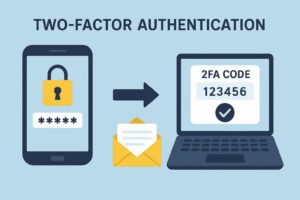
    Two-Factor Authentication, or 2FA, adds an extra lock to your digital door. It’s a security process where you need two different proofs of identity before gaining access.

    Instead of just typing your password, you’ll also need to confirm your identity with something else—like a code sent to your phone or generated by an app.

    This makes it much harder for hackers to break in, even if they know your password.

    The Importance of 2FA in Today’s Digital World

    We live in a time where cybercrime is booming.

    From phishing emails to data breaches, hackers are constantly trying to steal logins. For businesses, one compromised account could lead to millions in losses. For individuals, it could mean losing access to your email, bank account, or even your social media profiles.

    That’s why 2FA isn’t just a good idea—it’s a necessity.

    How Does Two-Factor Authentication Work?

    Here’s the simple breakdown:

    1. You enter your username and password.
    2. The system asks for a second form of verification.
    3. You provide a code from your phone, email, or authentication app.
    4. Only then do you gain access.

    Types of Two-Factor Authentication

    2FA generally falls into three categories:

    • Something You Know: A password, PIN, or security question.
    • Something You Have: A smartphone, hardware token, or smart card.
    • Something You Are: Biometrics like fingerprints, facial recognition, or voice ID.

    The idea is to combine two different categories so that even if one is compromised, the other keeps you safe.

    Common Methods of 2FA

    Not all 2FA methods are created equal. Let’s explore:

    • SMS Verification: A code sent to your phone via text. Simple but vulnerable to SIM-swapping attacks.
    • Email-based 2FA: A link or code sent to your email. Better than nothing, but if your email is hacked, you’re in trouble.
    • Authenticator Apps: Apps like Google Authenticator generate time-based one-time passwords (TOTP). More secure than SMS.
    • Hardware Tokens: Physical devices like YubiKey provide the strongest protection but can be less convenient.

    Popular 2FA Apps and Services

    Several apps make 2FA easy for everyday users:

    • Google Authenticator – Free, simple, widely supported.
    • Microsoft Authenticator – Great for both Microsoft and third-party accounts.
    • Authy – Cloud backup of codes makes switching phones easier.
    • Duo Security – Popular in enterprise environments for strong protection.

    Advantages of Using 2FA

    Why bother with 2FA? Because:

    • It drastically reduces the risk of account takeovers.
    • It’s easy to set up—most platforms have it built in.
    • It gives peace of mind, knowing your accounts are safer.

    Think of it as wearing a seatbelt. You might never need it, but when danger strikes, you’ll be glad it’s there.

    Drawbacks and Limitations of 2FA

    Of course, nothing is perfect. Some downsides include:

    • SMS-based 2FA is hackable via SIM-swaps.
    • Losing your phone means losing access to your codes.
    • Some users find it inconvenient and skip enabling it.

    But honestly, these are minor compared to the risks of having no 2FA at all.

    Difference Between 2FA and MFA (Multi-Factor Authentication)

    People often confuse 2FA with MFA. The difference?

    • 2FA = Exactly two factors (password + one more).
    • MFA = More than two factors (like password + fingerprint + hardware token).

    MFA is stronger, but 2FA is usually enough for most people.

    Industries That Rely Heavily on 2FA

    Some sectors can’t afford weak security:

    • Banking & Finance: Protecting money and sensitive data.
    • Social Media Platforms: Preventing account takeovers and impersonations.
    • Cloud Storage & Email Providers: Keeping personal and business data safe.

    When your business reputation or billions of dollars are on the line, 2FA is a no-brainer.

    How to Enable 2FA on Popular Platforms

    Here’s a quick guide:

    • Google: Go to Google’s 2-Step Verification.
    • Facebook: Settings > Security > Two-Factor Authentication.
    • Instagram: Settings > Security > Two-Factor Authentication.
    • Apple ID: Settings > Password & Security > Two-Factor Authentication.

    Most platforms walk you through it in a few easy steps.

    Best Practices for Using 2FA

    To get the most out of 2FA:

    • Always back up recovery codes in case you lose your phone.
    • Use authenticator apps or hardware tokens instead of SMS whenever possible.
    • Regularly update your recovery options (like backup email and phone number).

    Future of Two-Factor Authentication

    Passwords might actually be on their way out. Big tech companies like Microsoft, Apple, and Google are already working on passwordless authentication using biometrics and passkeys.

    2FA will evolve into stronger and smoother login experiences. One day, we might laugh at the idea of remembering dozens of complicated passwords.


  •  How to Use 2FA for Instagram and Facebook (Step-by-Step Guide)

     How to Use 2FA for Instagram and Facebook (Step-by-Step Guide)

     How to Use 2FA for Instagram and Facebook (Step-by-Step Guide)

    Meta Description


    Keep your Instagram and Facebook secure. Follow this step-by-step guide to enable Two-Factor Authentication in minutes.

    Image Alt Text: Activating 2FA on Facebook and Instagram
    Image Title: Secure Login with Two-Factor Authentication

    Normal Format

    Introduction: Stay Ahead of Hackers with 2FA

    With rising cyber threats, social media platforms are frequent targets for hackers. If you’re using Instagram or Facebook, relying on just a password is no longer enough. In this article, you’ll learn how to activate 2FA and why it’s essential for your digital safety.

    What Is Two-Factor Authentication (2FA)?

    • First, by entering your password
    • Second, by providing a temporary code sent to your phone or generated through an app

    Benefits of Enabling 2FA on Instagram and Facebook

    • Stops hackers in their tracks
    • Safeguards personal messages, photos, and contacts
    • Minimizes the risk of identity theft
    • Builds trust with your followers and friends

    It’s one of the most effective ways to keep your social life online completely under your control.

    🔐 How to Activate 2FA on Instagram

    Step 1: Access Your Account Settings

    • Open the Instagram app
    • Tap on your profile icon
    • Tap the three-line menu (top right corner)
    • Go to Settings and Privacy

    Step 2: Navigate to Security Section

    • Tap on Accounts Center
    • Select Password and Security
    • Tap Two-Factor Authentication

    Step 3: Pick Your Verification Method

    You’ll see options like:

    • Text Message (SMS)
    • Authentication App (e.g., Google Authenticator, Authy)

    Step 4: Complete the Setup

    • Follow the prompts
    • Confirm your selected method
    • Save the backup codes displayed (these help if you lose access to your phone)

    🔐 How to Activate 2FA on Facebook

    Step 1: Open Your Facebook Settings

    • Launch the Facebook app
    • Tap the three-line menu (bottom or top right)
    • Scroll to Settings & Privacy > tap Settings

    Step 2: Enter the Security Settings

    • Scroll to Password and Security
    • Choose Two-Factor Authentication

    Step 3: Choose a 2FA Method

    Facebook lets you choose from:

    • SMS Code
    • Authentication App
    • Security Key (physical USB key, optional for some users)

    Step 4: Set It Up and Confirm

    • Enter the code you receive
    • Confirm setup
    • Make sure to store your recovery codes safely

    💡 Best Practices for Using 2FA

    • Update your phone number or app if you change devices
    • Store your recovery codes offline—don’t screenshot them
    • Avoid sharing your 2FA codes with anyone

    🔄 How to Disable 2FA (Only If Necessary)

    You can turn off 2FA through the same settings menu. However, this is strongly discouraged. Disabling it makes your account much more vulnerable to hacking attempts.

    Only consider it if you’re switching devices or changing your verification method—and even then, re-enable it immediately afterward.

    🛠 Troubleshooting Common 2FA Problems

    Problem

    Solution

    Didn’t receive 2FA code

    Check signal or use an authenticator app

    Phone lost or stolen

    Use recovery codes or contact support

    Code not accepted

    Ensure time sync on device, try again

    Locked out of account

    Use account recovery with linked email

    Frequently Asked Questions

    Q1: Can I use the same Authenticator app for both Facebook and Instagram?

    Yes! Most apps like Google Authenticator and Authy support multiple accounts.

    Q2: Do I need to enable 2FA again if I reinstall the app?

    No, but you may need to verify again if your login is considered suspicious.

    Q3: What happens if I lose my recovery codes?

    You’ll need to go through the account recovery process using your email or phone number.

    Q4: Is it safe to use SMS-based 2FA?

    It’s safer than no 2FA, but apps like Google Authenticator provide stronger protection.

    Q5: Can hackers bypass 2FA?

    It’s extremely rare. Most 2FA hacks involve phishing or users voluntarily giving up codes. Stay alert and never share your code.

    🔚 Conclusion

    Activating Two-Factor Authentication on Facebook and Instagram is no longer optional—it’s essential. In just a few easy steps, you can lock down your accounts and prevent unauthorized access. Whether you’re a content creator, influencer, or everyday user, 2FA keeps your social presence safe.